Search by County
Search by County searches for
AULs located in the selected county.
Follow the steps below to search for
AULs in a county.
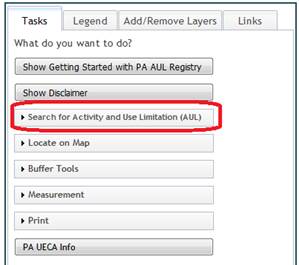
- Select the Tasks tab on the left side of the
screen.

2.
Click on Search for Activity and
Use Limitation (AUL) to display menu if necessary.
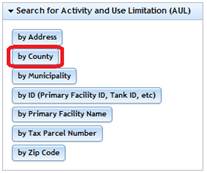
- Click on by County.
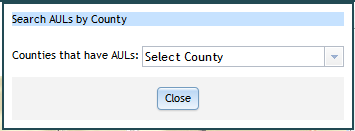
- The County Dialog box will be displayed.
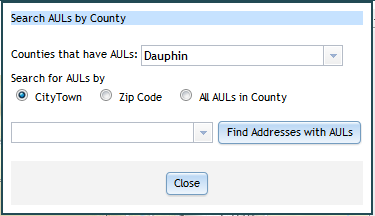
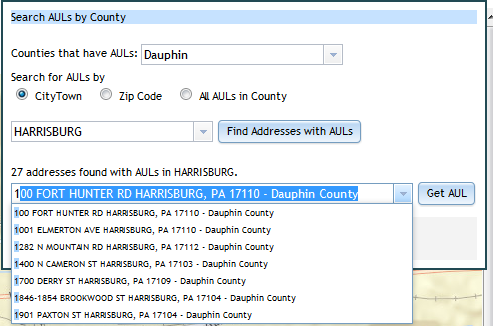
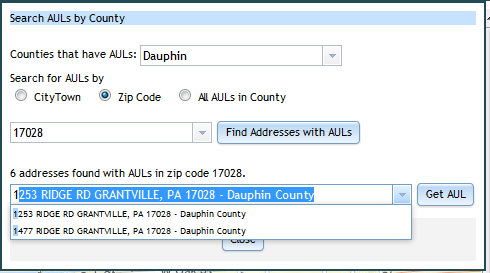
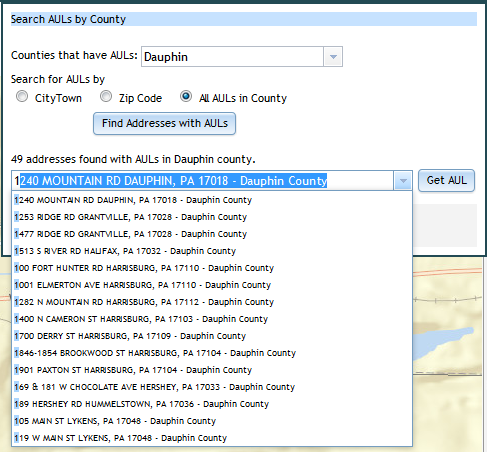
5. �Select the county from the drop-down box. This list only contains counties that have AULs. Once the county is selected, you have the option to search for AULs by City/Town, Zip Code or all the AULs in the county. Check the option you want to search by. The drop-down list will be populated with values from the option chosen.
City/Town
Zip Code
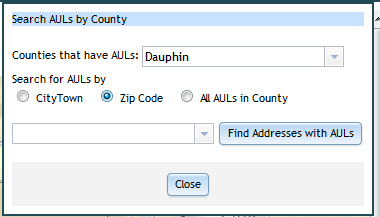
All AULs in County
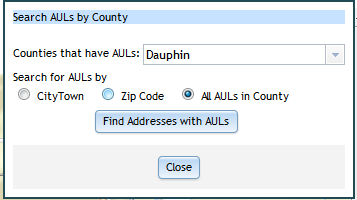
- For a City/Town or Zip Code search, select the value
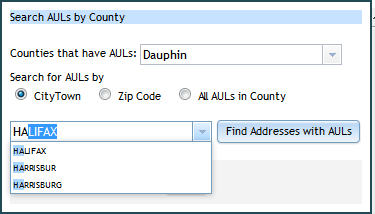
you want to search for from the drop-down box. If you type the beginning
letters of the city/town, a drop-down list will be displayed that shows
cities/towns beginning with those letter(s). You can then select the
city/town from the abbreviated drop-down box. If you type the
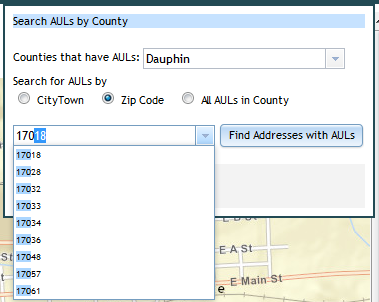
beginning numbers of the zip code, a drop-down list will be displayed that
shows zip codes beginning with those number(s). You can then select the
zip code from the abbreviated drop-down box.
�City/Town
Zip Code
- Click
the
 �button.��
The address drop down box and
�button.��
The address drop down box and  �button will become visible.
 - Select the address from the address drop-down box.
Addresses that have AULs associated with them for the selected county and
city/town or zip code will be displayed in address drop-down box. If you
type the beginning characters of the address, a drop-down list will be
displayed that shows addresses beginning with those character(s). You can
then select the address from the abbreviated drop-down box.
City/Town
Zip Code
All AULs
in County
9.
Click the �button.
10. �The map will zoom to
the AUL with the address selected in the drop-down box if only 1 AUL is found.
The AUL appears as  .
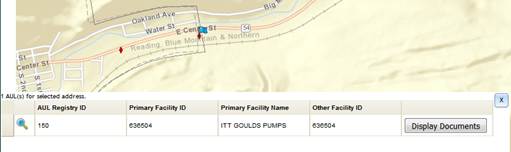
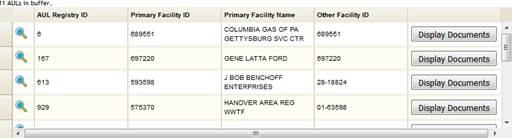
The search result attributes will be displayed in the bottom left corner of the
map.
.
The search result attributes will be displayed in the bottom left corner of the
map.
- � Move the buffer
grid scroll bar if necessary to the right to show the Display Documents.
- Click the
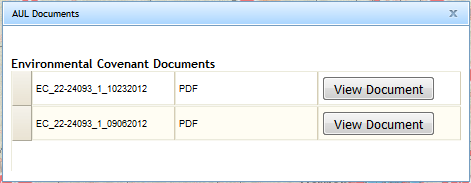
 �button to display the selected row AUL
documents.
�button to display the selected row AUL
documents.
�� ��
1.
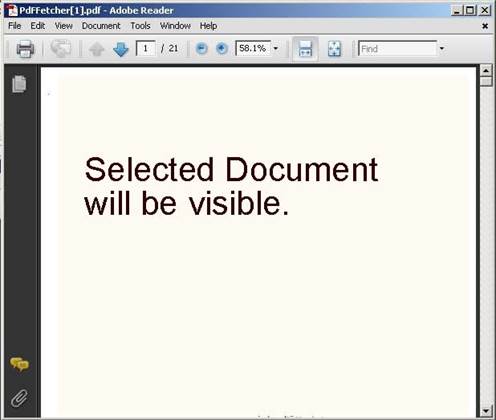
Click the  �button to display the selected document.
- Click the
 icon
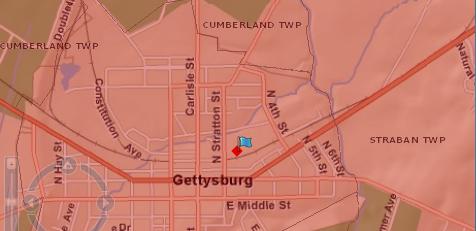
to zoom the map to the selected row AUL location.
icon
to zoom the map to the selected row AUL location.
- The Clear Selection
tool
 can
be used to clear search results.
can
be used to clear search results.